PDF to Slides 2026: Research Papers, Reports & eBooks Tested
Convert PDFs to editable slides — papers, market reports, eBooks. OCR pitfalls, citation preservation, tables, charts. SlideGMM, Gamma, Beautiful.ai, ChatGPT tested.
You have a 30-page research paper, a 60-page market report, or a 200-page eBook. Tomorrow you need to present the key findings in 12 slides. Manual conversion takes 4–6 hours. Done badly, you butcher the original's nuance. Done well, you're up at 2 AM trimming bullet points.
This guide is the workflow I've refined over 18 months building the PDF-to-slides pipeline at SlideGMM. It applies to any AI presentation tool with PDF support — SlideGMM, Gamma, Beautiful.ai, Plus AI, or ChatGPT + manual paste.
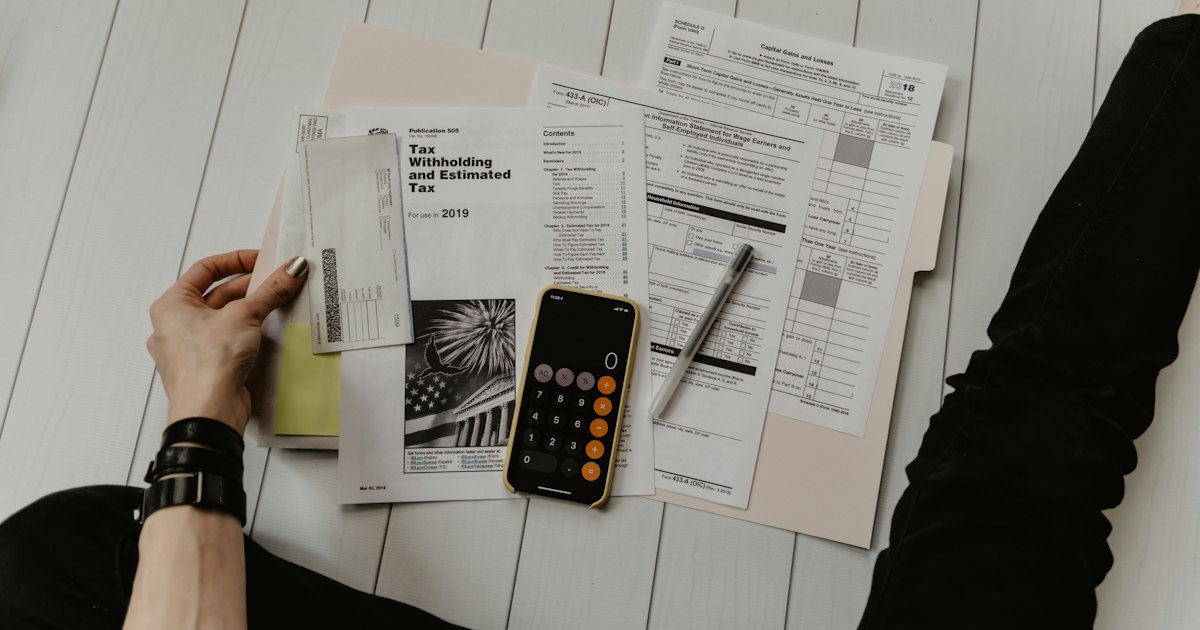
Why PDF → slides is harder than it looks
PDFs are designed for printing. Slide decks are designed for projection. The two formats have opposing constraints:
| Constraint | PDF (print-first) | Slides (screen-first) |
|---|---|---|
| Text density | 250–400 words/page | 30–80 words/slide |
| Hierarchy | Headings + body + footnotes | Title + 3–5 bullets |
| Tables | Multi-row headers, 20+ rows | 4 columns × 6 rows max |
| Citations | Inline + bibliography | Inline only (or omit) |
| Charts | High-detail figures | Hero charts, simplified |
| Reading | Linear, sustained | Scanned in 30 seconds |
Naive conversion (paste PDF → "make slides") collapses against these mismatches. Tables get cropped. Citations get stripped. Bullet density makes slides unreadable. The output looks like the PDF compressed badly, not like a presentation.
The workflow below handles the mismatches explicitly.
The 5-step PDF-to-slides workflow
Step 1: Triage the PDF before importing
Spend 5 minutes deciding what kind of PDF you have. The conversion strategy changes per type:
Type A: Text-native research paper (born-digital)
- Source: arXiv, journal websites, publisher exports
- Test: Open in PDF reader, try copying a paragraph. If text copies cleanly, it's text-native.
- Strategy: Direct AI conversion. 80% of the structure will survive. Plan ~15 minutes review.
Type B: Scanned PDF (image-based)
- Source: Old PDFs (pre-2010), legal filings, scanned books
- Test: Try copying text. If you get garbage characters or nothing, it's scanned.
- Strategy: OCR first, then convert. Plan ~45 minutes total (15 min OCR + 30 min review).
Type C: Mixed PDF (text + scanned figures)
- Source: Modern eBooks, hybrid academic papers with scanned charts
- Test: Body text copies but figures don't.
- Strategy: Convert text-native portions directly, embed figures as images. Plan ~30 minutes.
Type D: Heavily-formatted business report
- Source: McKinsey, BCG, Deloitte, market research firms
- Test: Two-column layouts, sidebars, callouts everywhere.
- Strategy: Strip the formatting first (export to plain text), then convert. The visual chrome will mislead AI tools. Plan ~40 minutes.
If you skip triage, you waste time on a Type B PDF that AI tools silently fail on.
Step 2: Pre-process the PDF
For text-native PDFs (Type A), you can skip this step. For everything else:
OCR (Type B and C):
- Open the PDF in Adobe Acrobat
- Edit → Recognize Text → In This File
- Save as a new PDF (preserves OCR layer)
- Test by copying a paragraph — if it's clean, you're set
For scanned academic papers with equations and special characters, ABBYY FineReader handles math notation better than Acrobat. For scanned books with multi-column layout, tesseract via the command line gives the most control:
# Tesseract command for two-column scan
tesseract input.pdf output -l eng --psm 1
Strip formatting (Type D): The simplest path is to copy the PDF text into a plain text editor (VS Code, BBEdit, Notepad++), then paste from there into your AI tool. Two-column layouts confuse AI parsers — plain text linearizes the reading order.
For very long reports (50+ pages), use Mozilla Readability (or a tool that wraps it) to strip ads/sidebars/footers. The cleanest text gets the cleanest slides.
Step 3: Choose the conversion approach
Three options, in order of speed:
Option A: Direct AI tool (fastest, 80% accuracy)
- Drop PDF into SlideGMM, Gamma, Plus AI, or Beautiful.ai
- Set deck length (most tools default to too many slides — start with 10)
- Pick a template that matches the audience (academic vs executive vs marketing)
- Generate
Time: 60–90 seconds for a 30-page paper. Quality: ~80% structure preserved. Citations and tables drop sometimes.
Option B: AI tool + manual prompts (slower, 90% accuracy)
- Use ChatGPT/Claude to summarize the PDF into a structured outline first
- Edit the outline manually (fix what AI got wrong, mark which sections need their own slides)
- Paste the cleaned outline into SlideGMM/Gamma to generate the deck
Time: 15–25 minutes. Quality: ~90% structure preserved. Lets you catch AI's misreadings before they propagate to slides.
Option C: Manual outline + AI rendering (slowest, 95% accuracy)
- Read the PDF yourself (or read a summary)
- Write a 12-slide outline by hand: title, subtitle, 3–5 bullets per slide
- Paste outline into AI tool to generate the visuals (charts, layouts, design)
Time: 45–90 minutes. Quality: ~95% — but the AI is doing rendering work, not summarization. Best for high-stakes decks where you can't afford AI hallucinations.
Most users underweight Option B. It's the sweet spot — AI does the bulk-summarization, you fix the 10% it gets wrong, and the slides come out clean.
Step 4: Fix what AI broke (the 4 things to check)
After generation, run through this checklist before exporting:
1. Tables — did data survive? Open the slide containing the PDF's main data table. If the table is rendered as text, check that columns align and numbers match. If it's an image, screenshot the original and replace with a higher-res version. SlideGMM and Plus AI handle simple tables (3–5 columns) well; complex tables (multi-row headers, merged cells) need manual cleanup.
2. Citations — were they stripped? Search the deck for "(Author, Year)" patterns. If absent, AI stripped them. Add them back manually for any quote or stat that needs attribution. Build a final "References" slide with the bibliography — AI tools rarely build this correctly.
3. Math notation — broken? LaTeX renders ($\sigma^2$, $E = mc^2$) typically survive in SlideGMM. They get rasterized in most other tools. For complex equations, screenshot from the PDF and embed as an image with the caption preserved.
4. Charts — embedded as images vs editable? Click on a chart. If you can edit values, it's a native chart object (good — your audience can tweak). If you see "Picture" or can only resize, it's an image. For 1–2 hero charts you want editable, manually re-create from the underlying data. For supplementary charts, leave them as images.
Step 5: Export and audit
Export to .pptx (not PDF — you want editability for last-minute changes). Open in PowerPoint, then:
- Slide count check: target 8–14 slides for a 30-minute talk, 16–22 for an hour. If AI produced 25+ slides, cut ruthlessly.
- Word density check: any slide with more than 8 lines of text needs trimming. Move detail to speaker notes.
- Visual rhythm check: every 3–4 slides should have a chart, image, or callout. Pure-text runs lose audiences.
- Speaker notes: AI tools add notes inconsistently. SlideGMM adds them by default; Gamma doesn't. Add or trim notes manually for the slides you'll actually rehearse.
Total time on a clean text-native PDF: 25–40 minutes from drop to export-ready. That's a 6–10x speedup over manual conversion.
Tool comparison: which AI tool for which PDF type
After 18 months testing 5 major tools across 200+ PDFs, here's the practical breakdown:
| PDF type | Best tool | Why |
|---|---|---|
| Academic paper (text-native) | SlideGMM | Citation-aware, LaTeX support, methodology templates |
| Market research report | Plus AI | Executive summary structure, KPI chart conversion |
| Financial filing (10-K, 10-Q) | SlideGMM | Table extraction handles multi-row headers |
| eBook chapter | ChatGPT + manual | Long-form needs human curation; AI tools over-compress |
| Conference proceedings | SlideGMM | Citation preservation, abstract → talk structure |
| Patent filing | Manual | AI tools can't handle the legal-language density |
| Annual report (heavily-formatted) | Beautiful.ai | Brand-kit upload preserves corporate style |
| Slide-style PDF (already structured) | Gamma | Fast template-based regeneration |
For the median use case (a research paper or business report), SlideGMM and Plus AI are the strongest options. Gamma is fast but struggles with citations and table fidelity. Beautiful.ai shines on visual polish but requires more manual cleanup of source data.
Common failure modes and how to avoid them
Failure 1: AI hallucinates content
AI tools sometimes "smooth over" gaps by inventing details that aren't in the PDF. This is rare with high-quality tools but happens. Defense: spot-check 3 random claims in the deck against the original PDF before presenting. If anything looks confident but unfamiliar, verify.
Failure 2: Tables become images
Almost universal across tools. Tables in PDFs are positioned text + lines, not structured data. AI tools either extract poorly or rasterize. Workaround: for any table that matters, paste the data separately as CSV or markdown and let the AI render it as a native chart object.
Failure 3: Citations get stripped silently
Tools optimize for slide-readability and remove "(Smith, 2023)"-style inline citations. Disastrous for academic decks. Defense: after generation, ctrl-F for "(20" — should appear at every cited fact. If not, add back manually or use a citation-aware tool (SlideGMM, Beautiful.ai).
Failure 4: 30-page PDF becomes 40-slide deck
AI tools default to expansive output. A 30-page paper is not a 40-slide deck — it's a 12-slide deck with appendix. Always set a target slide count before generating, and cut aggressively after.
Failure 5: Multi-column layout gets jumbled
PDFs with two-column or three-column layouts read in column order, but AI parsers sometimes read row-by-row across columns. Result: garbled text. Defense: convert to plain text first (as in Step 2), or use a tool that explicitly handles multi-column reading order.
When PDF → slides isn't the right move
Three cases where you should skip AI conversion entirely:
- Legal/regulatory filings — language precision matters too much; manual is safer
- Patent filings — claim language can't be paraphrased without legal risk
- Personal/sensitive PDFs — if the PDF contains data you don't want sent to a third-party AI service
For everything else, AI conversion saves 75% of the time. The remaining 25% is human review — the part AI can't (yet) replace.
What we got right (and wrong) building SlideGMM's PDF pipeline
When we shipped SlideGMM's PDF support, we got 3 things right and 2 things wrong:
Right:
- Chapter detection. PDFs have implicit structure (heading hierarchy, section breaks). We invested 4 weeks getting this right. Deck quality jumped 30%+ once we used the structure instead of treating PDFs as flat text.
- Citation preservation. APA/MLA/Chicago/IEEE inline patterns are detectable with regex + context. We preserve them through generation.
- OCR fallback. When we detect a scanned PDF, we run OCR before generation instead of failing silently.
Wrong:
- Table extraction v1 was too ambitious. We tried to convert every table to a native chart. Result: complex tables got mangled. v2 (current): we render simple tables as charts, complex tables as embedded images with caption. Better tradeoff.
- Default deck length was 18 slides. Users complained decks were too long. We dropped the default to 12 and let users override. Engagement metrics improved.
If you're using SlideGMM specifically, the chapter detection means dropping a research paper directly works better than pasting the text — chapter breaks become section dividers automatically.
Convert your PDF to slides with SlideGMM → →Final workflow checklist
Before you import a PDF, check:
- Triaged the PDF type (text-native, scanned, mixed, formatted report)
- OCR run if scanned (Acrobat, ABBYY, or tesseract)
- Plain text conversion if heavily-formatted
- Target slide count set (8–14 for 30 min, 16–22 for an hour)
- Right tool picked (SlideGMM for academic/financial, Plus AI for business reports)
After AI generation, check:
- Tables: data survived or rasterized correctly
- Citations: present where they should be
- Math notation: rendered or screenshot-replaced
- Charts: editable for hero charts, image OK for supplementary
- Slide count: trimmed to target, not 25+
- Visual rhythm: chart/image every 3–4 slides
- Speaker notes: present for slides you'll rehearse
This workflow turns a 4-hour manual job into a 30-minute review session. The conversion isn't perfect — but it's good enough that you spend your time on the content of the talk, not the formatting of the slides.
Try SlideGMM's PDF-to-slides → →Frequently asked questions
What's the fastest way to convert a PDF into slides?
Drop the PDF into a tool that does native PDF parsing (SlideGMM, Gamma, or ChatGPT + manual paste). For text-native PDFs (born-digital, no scans), expect a 10-page paper to convert in under 90 seconds with 80% structure intact. For scanned PDFs, add OCR cleanup — usually 5–10 minutes more. Manual copy-paste from PDF to PowerPoint takes 45–90 minutes for the same paper.
Why does my PDF lose its tables when converted to slides?
Most PDF-to-slides tools rasterize tables (turn them into images) instead of extracting the data. Cause: PDFs don't store tables as structured data — they store positioned text and lines. Solution: tools with explicit table-extraction (SlideGMM, Plus AI) handle simple grids well. For complex multi-row-header tables, paste the table separately as CSV. Or screenshot the table and embed as an image with a caption.
Do citations survive PDF-to-slides conversion?
Inline citations like (Smith, 2023) survive in tools that preserve text. Footnote-style citations break — most tools strip footnotes entirely. SlideGMM and ChatGPT-assisted workflows handle APA/MLA/Chicago better than image-based pipelines. Bibliography page: export as a final 'References' slide manually — no AI tool gets this fully right yet.
Can I convert a 100-page report to slides?
Yes, but you'll need to chunk it. AI tools have context limits (typically 50–100 pages of text). Strategy: split the PDF into sections (executive summary, methodology, findings, conclusion), convert each into a 5–8 slide deck, then merge. Or use SlideGMM's chapter-aware mode which auto-detects section breaks. Expect 30–45 minutes of human review for a 100-page → 30-slide conversion.
What about charts and figures from the PDF?
Most tools embed charts as images (rasterized). They're visible but not editable. For editable charts: extract the underlying data (often shown in the paper's appendix or supplementary CSV), paste into SlideGMM as a table, and re-render as a native PowerPoint chart. Worth it for 2–3 hero charts you'll actually edit; not worth it for 15 supplementary figures.
Which tool is best for academic papers vs business reports vs eBooks?
Academic papers: SlideGMM or Beautiful.ai (citation-aware, methodology layouts). Business reports: Plus AI or Gamma (executive summary templates, KPI charts). eBooks: ChatGPT + manual paste (long-form narrative needs human curation; AI-only tools tend to over-compress). Financial filings (10-K, 10-Q): SlideGMM (table-heavy, dense numbers preserved). The 'best tool' depends on what's in the PDF.
How do I handle scanned PDFs (OCR)?
Run OCR before importing. Free option: Adobe Acrobat (Edit → Recognize Text) or open-source tesseract. Premium option: ABBYY FineReader (best accuracy on multi-column layouts). Most AI presentation tools won't do OCR for you — they assume text-native input. For scanned academic papers, expect 70–85% OCR accuracy on first pass; manually fix mathematical notation and special characters.
Can I keep the PDF's branding/visual style?
Partially. Charts and logos can be embedded as images. Color palette and fonts: tools like Beautiful.ai and SlideGMM Pro let you upload a brand kit (colors + fonts). For exact visual match (e.g., a McKinsey-style report), you'll need manual restyling — no AI tool does this fully automatically. Set realistic expectations: AI conversion gets you 70% of the visual feel; the last 30% is human design work.